01
Create visuals before source assets exist
Turn a written brief into an art-directed image without a photo shoot, illustration draft, or starting composition.

Describe the subject, style, composition, and details, then create images with model controls ready to use.
Open a prompt-bearing template at full size, inspect the creative direction, then use Recreate to move the prompt and settings into the generator.
WHY THIS WORKFLOW
Create polished AI images from text prompts with BotGo AI and leading image models.
01
Turn a written brief into an art-directed image without a photo shoot, illustration draft, or starting composition.
02
Describe subject, layout, materials, lighting, palette, typography, and intended use in one place.
03
Change model, framing, or prompt details while keeping the core concept available for rapid comparison.
Explore the inputs, controls, and creative workflows available with Text to Image on BotGo.
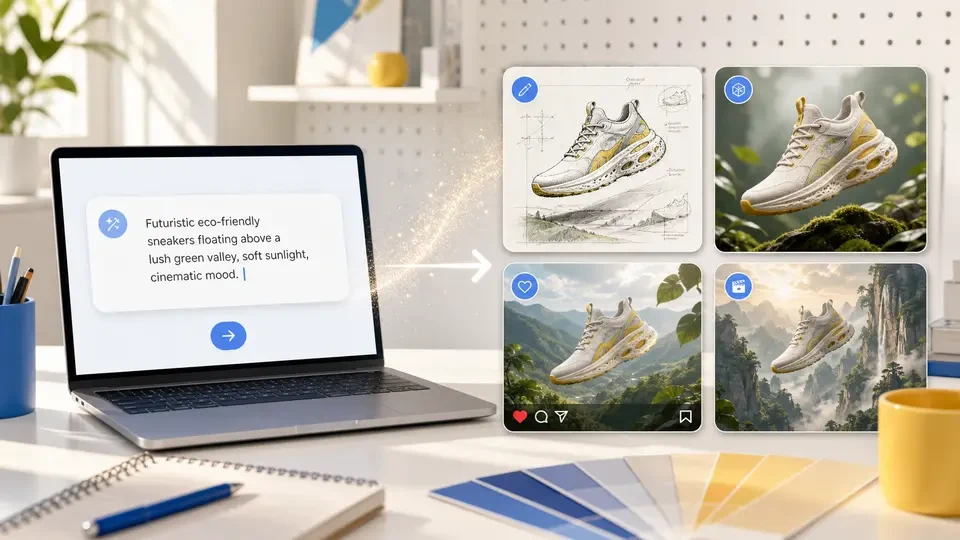
Describe subject, composition, lighting, palette, materials, text, and final use in one prompt.
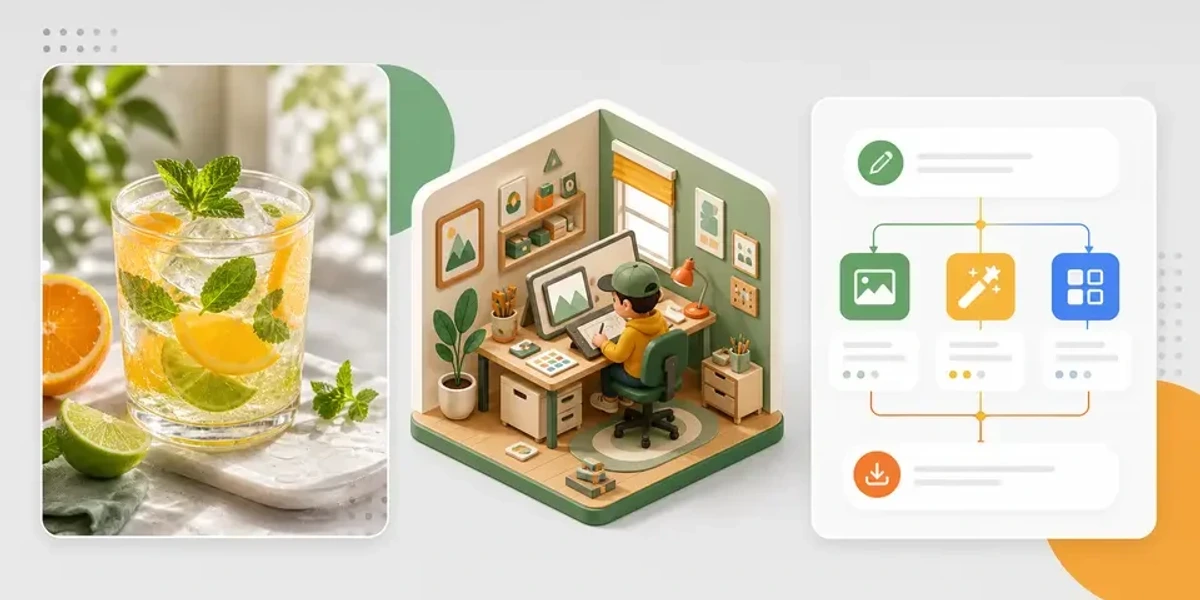
Compare fast ideation, high-resolution, typography, editing, and reference strengths in one place.
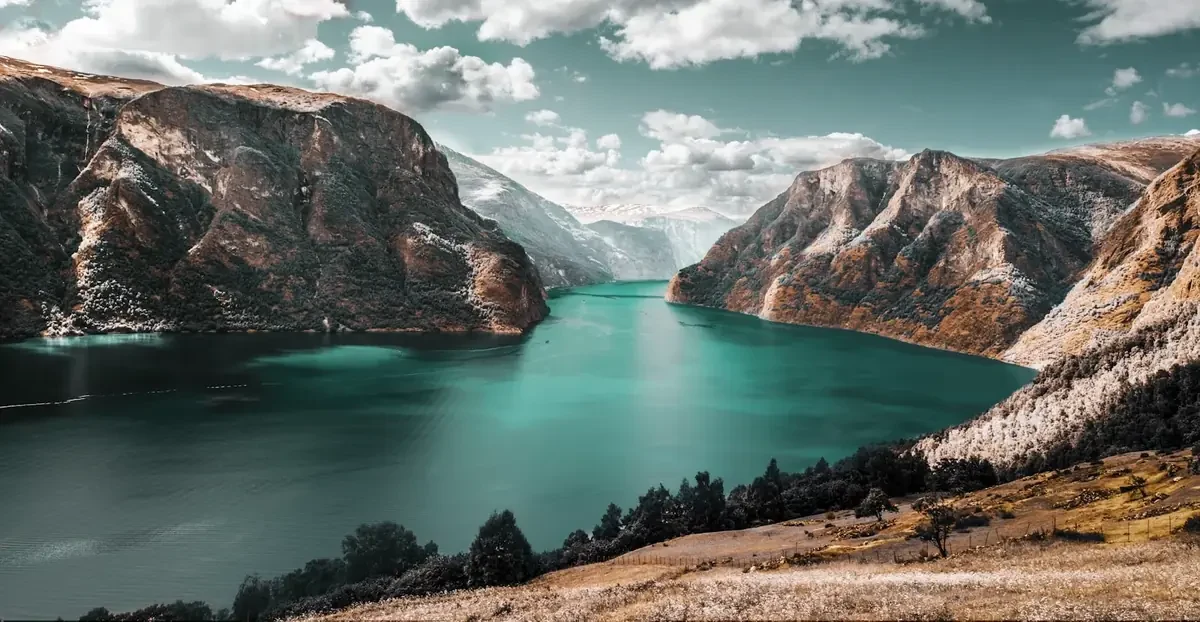
Set aspect ratio and resolution for social posts, ads, product pages, slides, or print concepts.
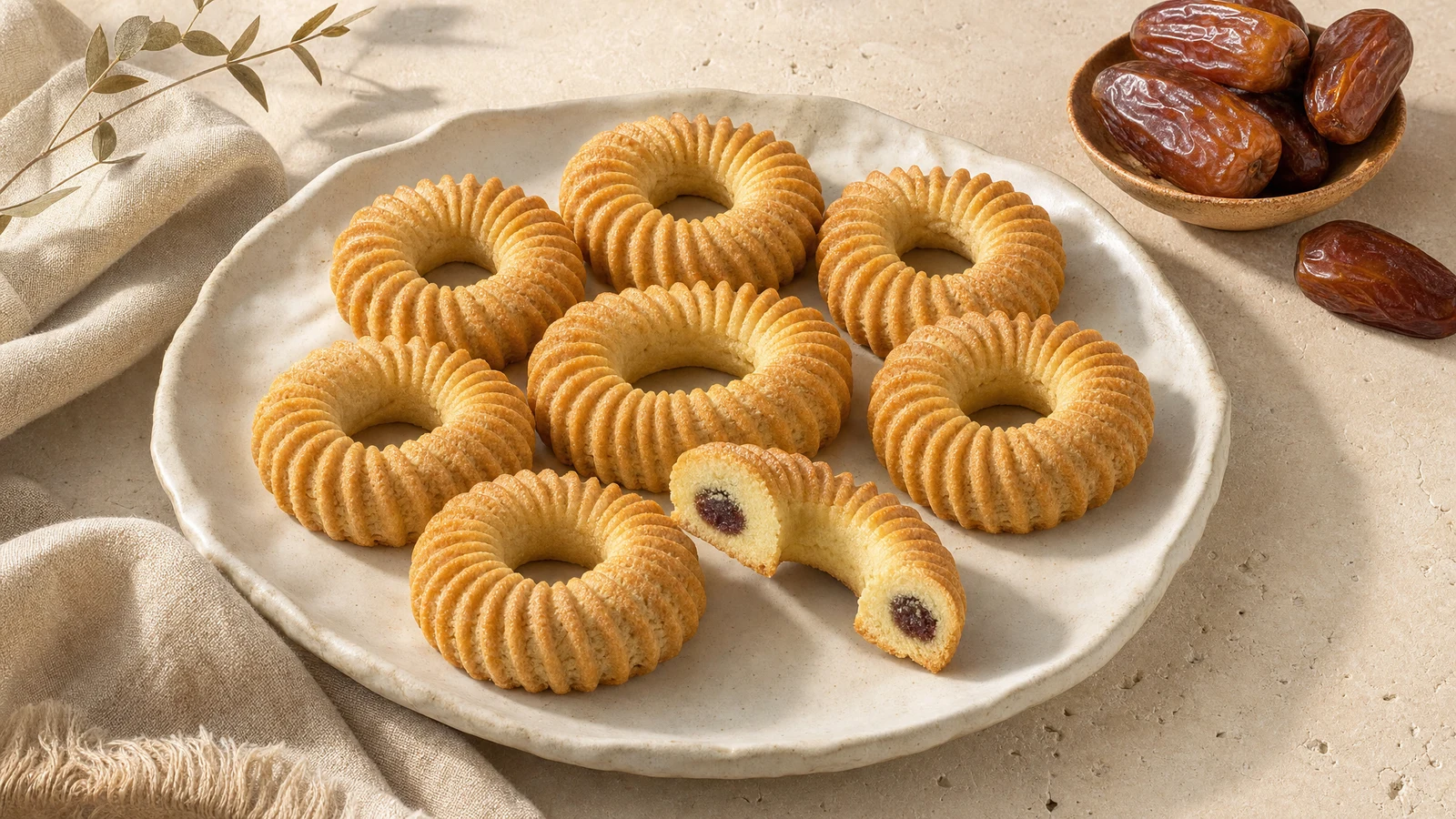
Refine the prompt, switch models, and create new directions from the same core idea.
Get started in three clear steps. No editing experience is required.
 1
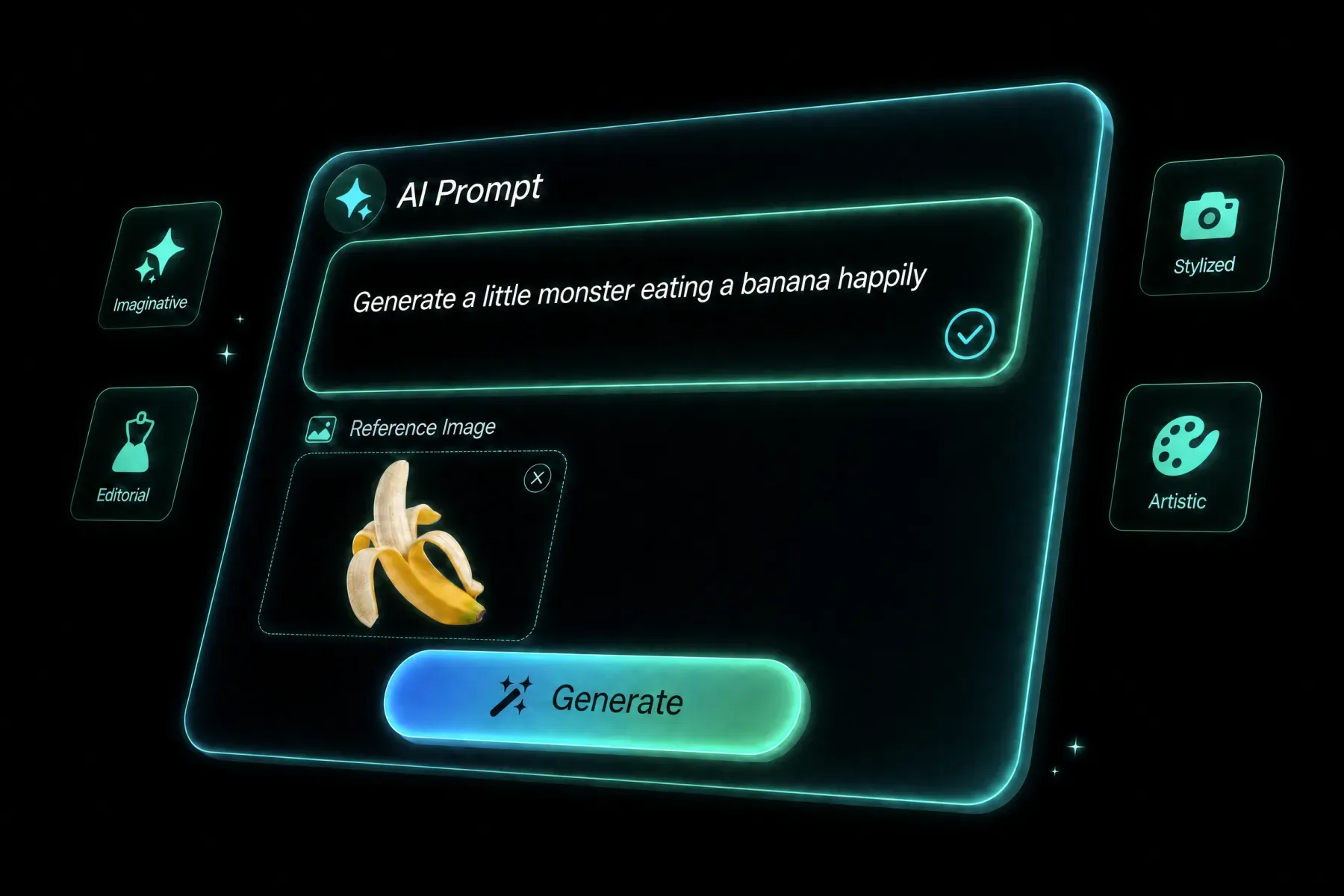
1Describe subject, composition, camera or illustration style, lighting, palette, materials, typography, and final use.
 2
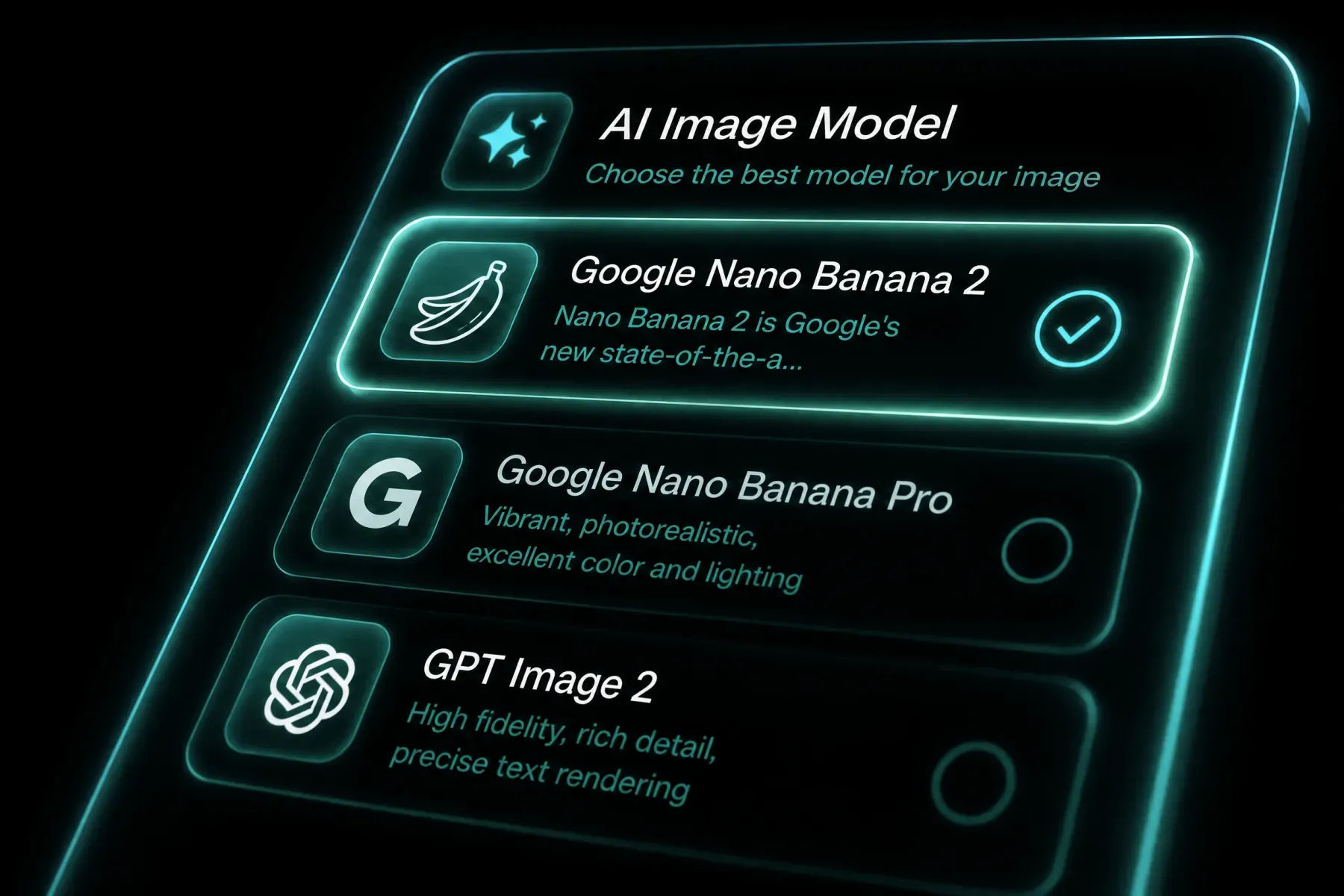
2Match the image model to typography, realism, references, editing, or speed, then set the delivery aspect ratio.
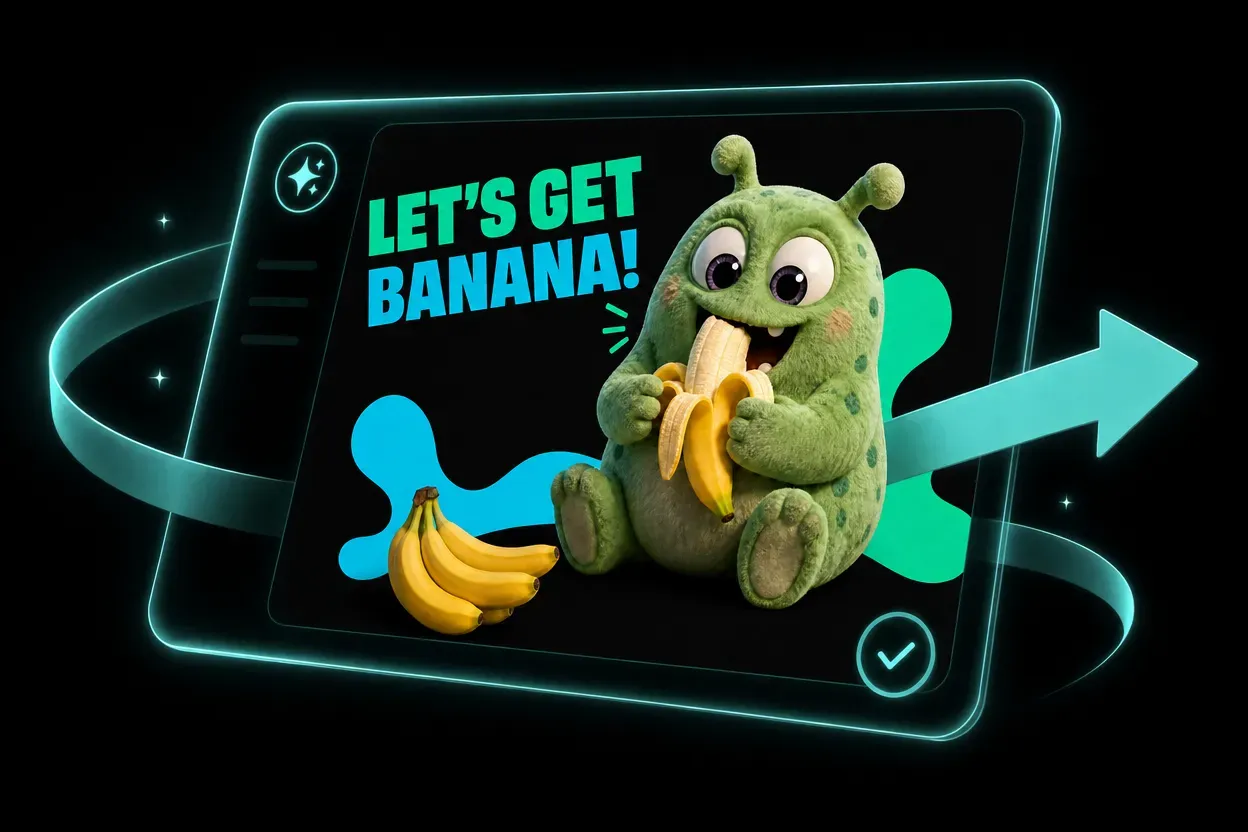 3
3Review composition and details, then refine one creative dimension at a time instead of replacing the full prompt.
See how prompts, references, formats, and model choices become practical creative directions.
Text to Image helps solo creators and teams explore more directions without adding more production tools.
Develop social concepts, series formats, and visual experiments faster.
Create campaign directions, channel variations, and localized assets from one workflow.
Prototype product media, launch concepts, and seasonal variations before full production.
Use AI for previsualization, mood development, storyboards, and option exploration.
Text to Image is available on BotGo as an AI creation workflow with model controls, source inputs, and output settings in one browser workspace.
Open the generator, choose Text to Image, add a prompt and any required source media, review the settings, and generate.
The available inputs appear directly in the generator and change with the selected model and workflow mode.
You can use the settings exposed by the model, including supported aspect ratios, resolution, duration, and reference limits.
Yes. BotGo keeps leading models in one workspace so you can compare inputs, formats, and workflow modes.
Rights can depend on the model, source media, plan, and local law. Review the terms and use only assets you have permission to upload.
Write a concrete brief with subject, composition, action, camera or lighting, style, and final use. For edits, state what must stay unchanged.
Continue with a related AI creation workflow on BotGo.
Start creating with Text to Image in the BotGo workspace.
Try Text to Image Now